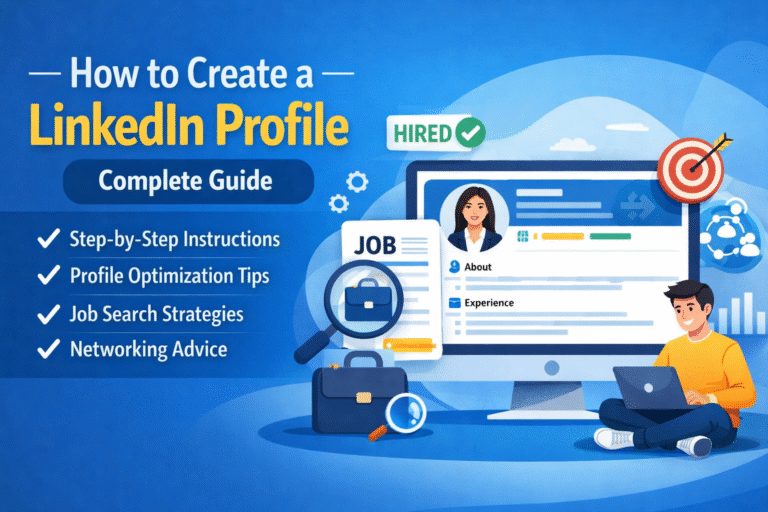
Whether you are a student, fresher, freelancer, or working professional, LinkedIn is one of the best platforms to build your professional identity online. It helps you showcase your skills, search for job opportunities, and connect you with other professionals.
In this blog, you will get to know how to create a LinkedIn profile from scratch, how to optimize it properly, and how to search for jobs on LinkedIn.
What Are the Benefits of Using LinkedIn?
LinkedIn is a professional networking platform with many benefits:
- LinkedIn has millions of job listings. You can search jobs by location, company, role, or experience level.
- Your LinkedIn profile works like an online resume that recruiters can see anytime.
- You can connect with HRs, recruiters, founders, managers, and people from your industry.
- By posting engaging content regularly, you can build your personal brand and attract opportunities.
- You can create and use a LinkedIn profile for free. Paid plans are optional.
How to Create a LinkedIn Profile (Step-by-Step)
Let’s understand how to create a basic LinkedIn profile practically.
Step 1: Go to www.linkedin.com or download the LinkedIn app from Play Store or App Store.
Step 2: Click on “Join now” and enter: your email address or mobile number and then create a password.
Step 3: Fill in:
Full Name
Location (City, Country)
Current role (Student / Job seeker / Working professional)
Step 4: LinkedIn will send an OTP or email verification link. Verify it to activate your account.
Now your basic LinkedIn profile is created.
How to Optimize Your LinkedIn Profile
Creating a profile is not enough. You need to optimize it properly so recruiters can find you.
1. Profile Picture
Your profile picture is your first impression. Always use a clear, professional photo with a plain background and avoid selfies and group photos.
If you don’t have a professional photo, you can easily create one using ChatGPT. Just upload any clear photo of yourself to ChatGPT and copy and paste the below prompt into ChatGPT. Your photo will be converted into a professional-looking profile picture.
Prompt:
“Convert this photo into a professional LinkedIn profile picture.
Keep a clean and natural look with soft lighting.
Use a plain or light background.
Make the image high-quality and sharp.
Ensure my face looks clear, confident, and professional.
Maintain natural skin tone and realistic facial features.
Suitable for a LinkedIn profile photo.”
2. Background Photo (Cover Photo)
The background photo helps show your profession or skills.
You can add:
- Your skills (Content Writing | SEO | Digital Marketing)
- Your tagline
- A clean professional design
Example: “Content Writer | SEO Content | Blog & Website Writing”
You can find a good design for your background photo from Canva, just customize it according to your needs.
3. Headline (Very Important)
Your headline appears below your name. Do not just write your job title.
Here is an example of a headline

4. About Section (Summary)
This section should explain who you are, what you do, and what you are looking for.
Example (Beginner-friendly):
I am a creative content writer with a strong interest in SEO writing and digital marketing. I enjoy writing simple, engaging, and informative content for blogs and websites.
I am currently looking for opportunities where I can grow my writing skills and contribute quality content to brands.
5. Skills Section
Add relevant skills related to your career. Try to add 10–15 relevant skills.
Examples:
- Content Writing
- SEO Writing
- Blog Writing
- Social Media Content
- Keyword Research
6. Experience Section
If you have work experience, add it clearly.
Example:
Content Writer – ABC Company
Jan 2024 – Present
- Wrote SEO-friendly blog posts
- Created website content
- Researched keywords
If you are a fresher, you can add:
- Internships
- Freelance work
- Projects
7. Education Section
Add your:
- College/University name
- Degree
- Year of passing
How to Search for a Job on LinkedIn
LinkedIn makes job searching easy if you know how to use the features.
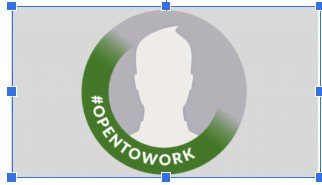
1. Turn On “Open to Work”
Steps:
- Go to your profile
- Click on “Open to”
- Select “Finding a new job.”
- Add job titles, location, and job type
This tells recruiters that you are looking for a job.
2. Search Jobs by Location
Steps:
- Click on Jobs tab
- Enter job role (e.g., Content Writer)
- Enter location:
- Your city (for nearby jobs)
- Any city or country you want
You can also select Remote jobs.
3. Apply Filters
Use filters like:
- Experience level
- Job type (Full-time, Internship, Remote)
- Date posted
4. Send Connection Requests
Networking is very important on LinkedIn.
How to send a request:
- Search professionals from your field
- Click Connect
- Add a personal note
Sample messages to a professional in the same field
Hi [Name],
I’m working in the same field and really liked your experience in [specific skill/role]. I’d be happy to connect and learn from your journey.
Sample message to a professional to learn the same field
Hi [Name],
I’m exploring opportunities and growth in this field and would love to connect with like-minded professionals like you.
Sample message to HR
Hi [Name],
I’m actively exploring opportunities in [your field/role] and would love to connect with you to stay updated on relevant openings.
5. Post on LinkedIn Regularly
Posting helps increase visibility.
You can post:
- Your learning journey
- Job search updates
- Tips related to your field
- Career experiences
Creating and optimizing a LinkedIn profile is very important for career growth. A well-structured profile can help you get job calls, freelance work, and professional connections.
If you are consistent, active, and keep improving your profile, LinkedIn can open many doors for you.